How to Print Borderless PDF Without White Margins (Easy Guide)
Want to print your PDF files without those annoying white borders? You’re in the right place! Whether you’re printing flyers, posters, photos, or presentations, borderless…
Want to print your PDF files without those annoying white borders? You’re in the right place! Whether you’re printing flyers, posters, photos, or presentations, borderless…
Need to turn your Excel spreadsheet into a Word document? This simple guide shows you exactly how to do it in minutes! Why Convert Excel…
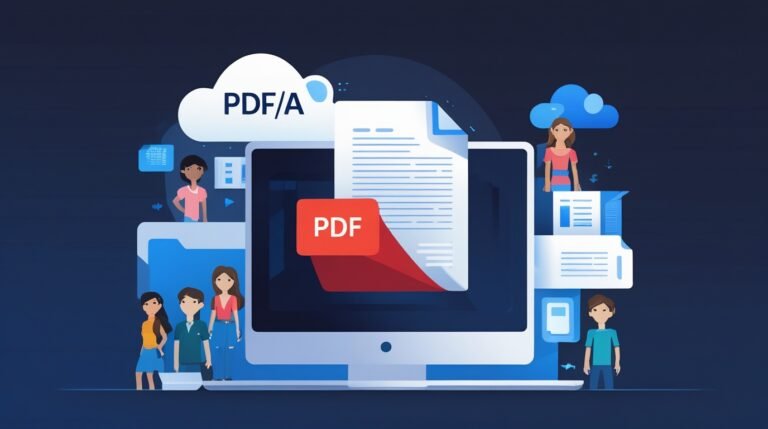
Ever wondered how important documents stay readable for decades? Let’s explore PDF/A – the superhero of file formats! Introduction: The Problem with Regular Files Imagine…
Ever had trouble editing or converting a PDF? You might find the output is wrong or the layout is off. The origin of your PDF matters more than you think, when editing and converting files. PDF quality and conversion The PDF conversion accuracy depends a lot on the quality of the original PDF. PDFs made digitally usually convert better than scanned or low-quality ones. This is because digital PDFs have structured data that software can easily understand. Key Takeaways The Fundamentals of PDF Quality Understanding PDF quality is key for accurate conversions. Several factors determine a PDF’s quality, affecting its conversion. What Determines PDF Quality PDF quality depends on resolution, compression, and file structure. A high-quality PDF has the right resolution, balanced compression, and an organized structure. This makes it easy to access and convert. Resolution, Compression, and File Structure Resolution impacts text and image clarity. Compression reduces file size but can lower quality if too much. A good file structure makes content easy to access and convert. PDF Standards and Compatibility Following PDF standards ensures the PDF works on different platforms. Standards like PDF/A are great for long-term archiving. Why Your PDF’s Origin Matters The origin of your PDF greatly affects its use and how well it converts. Knowing the differences in PDF creation is key for handling and editing them well. Native vs. Scanned PDFs PDFs fall into two main types: native and scanned. Native PDFs come from digital sources like word processors. They are searchable and editable by nature. In contrast, scanned PDFs are made from physical documents. They show text as images, needing OCR software to edit. Impact of Creation Method on Editability The way a PDF is made changes how you can edit it. Native PDFs are easier to edit because they have real text. Scanned PDFs are harder to edit unless you use OCR. The Hidden Metadata in Your PDFs Metadata, like author and creation date, also matters. It gives context to your document. Knowing where your PDF comes from helps you make better choices. It ensures you pick the right tools and methods for your needs. Different Types of PDFs and Their Characteristics…
Save editable text files—like .txt, .rtf, or .md—into PDF format with a simple drag-and-drop using dailymultitools’ free online Text to PDF Converter. No signup required: just choose files (or drag them into the upload area), click the Convert button, and download your PDF. Drag a text file into the PDF converter, or click the Choose Files / Upload button to select .txt, .rtf, .md, or .docx files from your device. Conversion usually starts automatically once the file uploads; for large files the progress indicator shows estimated time. You can upload multiple files or add from Dropbox/Google Drive using the dropdown on the Upload button. If needed, modify the converted PDF using the editor — add annotations, reorder pages, or compress the file before saving. Click the Download button (or the Download PDF link) to save your new PDF file to your device. For quick access, the main action button is labeled “Convert to PDF.” Most word processors already let you save documents as Portable Document Format (PDF), but if you searched “convert text to pdf” you probably want a quicker, browser-based way that handles plain text and other simple formats. dailymultitools automates that process: upload a text or document file, wait a few moments while the conversion runs, then download a ready-to-share PDF. The flow is intentionally simple—choose files or drag and drop, click Convert, and save the PDF to your device. How To Convert Text to PDF Online Notes: conversion time depends on file size and your browser/device; plain .txt files typically convert in seconds. For keyboard and screen-reader users, ensure the Upload/Convert buttons are reachable via Tab and include ARIA labels. Requirements To Use the Text to PDF Converter There aren’t many requirements to convert text to PDF with dailymultitools. It’s a cloud-based PDF converter you can access from any modern web browser on desktop or mobile—no special software needed. The basic Text to PDF tool typically doesn’t require registration: just open the page in your browser, upload your files, and convert. Supported input includes plain text and common document formats: .txt, .rtf, .md, .docx, .doc, and standard Office files (Word, PowerPoint, Excel). You can also convert images such as JPG, BMP, and PNG into PDFs. Upload files by dragging them into the upload area or by clicking the ‘Choose Files’ button; use the dropdown on that button to import from Dropbox or Google Drive. Quick compatibility tip: if your browser blocks uploads, check permissions or try another browser. For very large files, conversion time may increase; consider compressing images or splitting large documents before converting. If you need guaranteed offline conversion, use dedicated software, but for most text files and small document batches, the web tool converts fast and reliably. Why Convert Text to PDF? Converting text documents into PDF makes them easier to share, archive, and print. A PDF file preserves fonts, layout, and formatting so the recipient sees the document exactly as you intended—useful for emailing a resume, sending a contract, or publishing a report. PDFs are broadly compatible across devices and operating systems, so almost anyone can open your pdfs without needing the original word processor. While PDFs are generally harder to edit than native documents, they can still be modified with the right tools—so for sensitive files consider adding password protection or flattening the document before sharing. Quick FAQ: Can the recipient edit the PDF? Short answer: sometimes. If you need to prevent edits, use the Protect PDF tool to add a password or restrict editing before you send the file. Why Use Our Online PDF Converter? Using desktop apps like Microsoft Office or Google Docs to make PDFs works when you have them installed. But if you need to convert a text file on the go—on your phone or in a different browser—dailymultitools’ online PDF converter simplifies the process: open the page, upload your file, wait a few seconds for conversion (depending on file size), and download the PDF. Beyond basic convert-to-pdf features, dailymultitools offers a full suite of PDF tools to help with common tasks: merge multiple pdfs into one, compress pdf files to reduce size, annotate and sign documents, and protect or unlock PDFs. These features let you refine formatting, manage image-heavy pages (jpg, png), and prepare documents for distribution without installing extra software. Free users can convert and download PDFs directly; a Pro tier (if available) typically adds editing, batch conversion, and removes daily download limits—consider a short trial to test features like advanced editing or larger file handling. Check the pricing page for current plans and trial offers. We take data handling seriously. If dailymultitools provides data-retention and security guarantees, surface them prominently (GDPR compliance, encryption in transit, ISO certifications). If not, recommend adding statements about temporary storage windows and encryption. Always verify any stated retention period (for example, “removed after one hour”) before publishing. Learn more with our guides: reduce pdf file size, translate pdfs, use AI tools for PDF workflows, convert scanned PDFs to Word, and insert pdfs into Word documents. These resources help you manage pdf files from creation through distribution. Time is valuable—use dailymultitools to streamline pdf conversion and related tasks so you can focus on the content, not the file process. Ready to convert? Click the Convert to PDF button above to start.

Have you ever stared at an important document in another language and thought, “I could just Translate Documents Yourself”? You’re not alone. With our busy…
Introduction Ever snapped the perfect photo and needed it in PDF format right away? Or maybe you were trying to compile scanned documents into a…
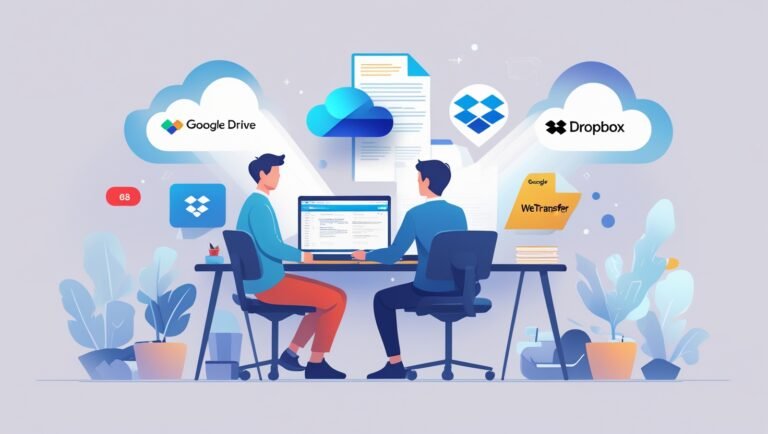
Transfer Large PDF Files Transferring large PDF files across devices is a challenge every student and freelancer faces sooner or later. Whether it’s a 200-page…

Your trusted platform for all document conversion needs. Fast, secure, and free to use.
Don’t miss our future updates! Get Subscribed Today!